Explore every core capability in one place

Each section groups related features and includes quick setup instructions, so the page feels easier to scan whether you are discovering Notify or checking a specific function.

Notification Features

Stay informed with customizable notifications from all your apps

All App Notifications

Receive notifications from any app installed on your phone

  1. Open Notify app on your phone
  2. Go to Notifications on bottom navigation bar
  3. Tap on + button to pick Generic app to add
Custom Vibration Patterns

Create and assign unique vibration patterns to different apps or contacts

  1. Go to Notifications
  2. Select an existing app from the apps list
  3. Scroll down to Vibrations section
  4. Use the editor to create your pattern
  5. Do the same also for custom contacts calls
Advanced Filtering

Filter notifications by keywords, app, or notification content

  1. Navigate to Notifications
  2. Select an existing app from the apps list, for example Whatsapp
  3. Scroll down to Filters section
  4. Choose filter content exclusive to type the keywords to ignore
  5. Save to activate the filter
Multiple Quiet Hours

Set multiple schedules when notifications are silenced

  1. Go to Notifications
  2. Tap Notifications filters
  3. Set start and end of sleeping times
  4. To enable emergency bypass, open a single app (for example Whatsapp) in the settings and choose Ignore sleeping time
Custom Contact Groups

Create different notification rules for family, work, school contacts

  1. Go to Notifications → Apps
  2. Tap "+" to create new custom rule (Family, Work, etc.)
  3. Set a contact name or set a list of keywords in the "Inclusive filter" to select some specific contacts
  4. Set custom:
    • Vibration patterns
    • Icon
    • Title/Text
  5. Enable "Ignore Notify silence mode" on the Advanced section to receive notifications always
Repeated Notifications

Never miss important alerts with customizable repeats

  1. Navigate to Notifications → Apps
  2. Select an app to setup multiple repeated notifications
  3. Select "Repeat" to repeat the notification multiple times
  4. Select "Remind mode" to keep repeating the notification at a fixed interval more times
Missed Notifications

Get last notification when reconnecting to phone

  1. Go to Notifications → Apps
  2. Enable "Missed Notification"
Calendar Reminders

Sync calendar events and reminders to your watch

  1. Navigate to Notifications → Reminders
  2. Enable "Phone calendar sync"
  3. Connect your Android calendar (grant permission)
  4. Optionally, choose calendars to ignore
Smart Alarms

Wake up at the optimal sleep phase with vibration alarms

  1. Go to Notifications → More
  2. Choose a "Smart Alarm"
  3. Set your desired wake-up time
Idle Alerts

Get notified when inactive for too long

  1. Navigate to Notifications → More
  2. Enable "Idle Alert"
  3. Set time schedules (e.g., only weekdays 9-5)
Phone Battery Alerts

Custom notifications for battery status

  1. Go to Notifications → More
  2. Enable "Phone Battery full" or "Phone Battery low"
  3. Set low/full thresholds (e.g., 20% and 100%)
  4. Set different vibrations for charging/complete
Connection Alerts

Get notified when watch connects/disconnects from phone

  1. Navigate to Notifications → More
  2. Enable "Watch Connected" or "Watch Disconnected"
  3. Customize:
    • Disconnect vibration/notification
    • Reconnect vibration/notification

Call Features

Stay connected with enhanced call and messaging capabilities

Call Notifications

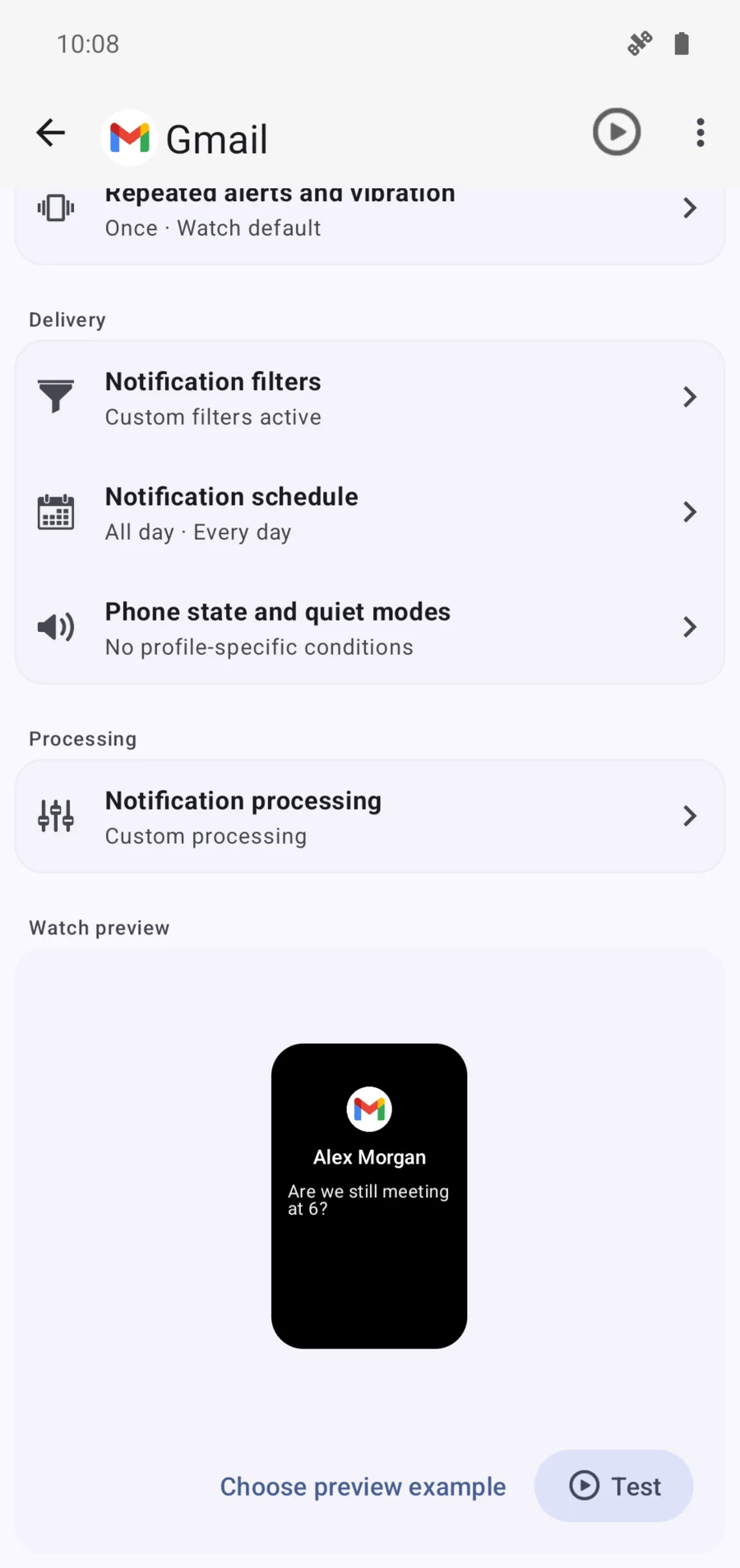
Receive alerts for incoming calls with custom vibration patterns

  1. Go to Notifications → Call
  2. Enable "Incoming Call"
  3. Customize vibration pattern
  4. Optionally, using + button create a custom incoming call rule for a specific contact
VoIP Call Support

Get notifications for WhatsApp, Telegram, Signal and other VoIP calls

  1. Navigate to Notifications → Calls
  2. Open "Incoming call"
  3. Enable VoIP Calls
Missed call

Receive repeated notifications after you missed an important incoming call

  1. Navigate to Notifications → Calls
  2. Open "Missed call"
  3. Optionally, set it to repeat multiple times to remind you
Advanced Quick Reply

Respond to messages directly from your wearable with customizable preset responses

  1. Navigate to Integrations
  2. Tap "Quick Reply"
  3. Choose "Default" to setup replies for all apps. Or add a custom contact to setup different custom quick replies for a individual contact
  4. Enter your preset message
  5. Assign to specific apps if desired
  6. Reorder replies by importance
  7. Optionally, enable "Quick Reply AI" mode to generate smart quick replies

Integrations Features

Connect with other apps and services for enhanced functionality

Google Fit

Keep your data unified by syncing your activity and health stats with Google Fit

  1. Go to Integrations → Google Fit
  2. Tap "Connect"
  3. Sign in with Simple Health free external app
  4. Select which data to sync (steps, heart rate, sleep, etc.)
  5. Set sync frequency (real-time, hourly, daily)
  6. Enable background sync if desired
Health Connect

Consolidate your health data with Health Connect for a unified ecosystem

  1. Ensure Health Connect is installed on your phone
  2. Navigate to Integrations → Health Connect
  3. Tap "Connect"
  4. Sign in with Simple Health free external app
  5. Select which data to sync (steps, heart rate, sleep, etc.)
  6. Set sync frequency (real-time, hourly, daily)
  7. Enable background sync if desired
Google Sheets

Sync your fitness data in real time to a Google Sheet and access it from anywhere.

  1. Go to Integrations → Google Sheets Sync
  2. Sign in with your Google account and grant access
  3. Select or create the target Google Sheet
  4. Choose which data to sync (steps, heart rate, sleep, etc.)
  5. Enable real-time sync or set a sync interval
  6. Tap Save and start your workout to see data appear in the sheet
Export Data

Easily export your health and activity data into spreadsheets

  1. Navigate to Integrations → Export Data
  2. Select data type (health, activity, sleep, etc.)
  3. Choose date range
  4. Select export format (CSV, Excel)
  5. Pick destination (email, cloud storage, local)
  6. Tap "Export" to generate file
Sleep as Android

Enable advanced sleep tracking by integrating with Sleep as Android

  1. Install Sleep as Android on your phone
  2. Go to Integrations → Sleep Tracking
  3. Select "Sleep as Android"
  4. Enable "Sync"
  5. Set up smart alarm integration
Event Automations

Run actions when specific smartwatch events occur

Available Triggers:
  • 🔌 Watch connected/disconnected
  • 🔋 Battery low/fully charged
  • 🏃 Workout started/finished
  • ⏰ Alarm triggered
  • 💓 Heart rate threshold crossed
  • 👣 Step goal achieved
Setup Steps:
  1. Navigate to Integrations → Automations
  2. Tap "Create New Automation"
  3. Select trigger event
  4. Choose action:
    • Send notification
    • Run Tasker task
    • Control smart home
    • Launch app
  5. Set conditions if needed
  6. Save automation
Tasker/Locale Plug-ins

Create advanced automations based on band events and data

  1. Install Tasker or Locale on your phone
  2. Go to Integrations → Automations
  3. Enable "Tasker/Locale Support"
  4. Select which events to expose to Tasker:
    • Step
    • Heart rate
    • Notification
    • Workout start/end
  5. Setup custom actions to send to control Notify app (send a notification, silent mode, ...)
  6. Create automation profiles in Tasker
Home Assistant

Integrate your smartwatch with your smart home setup

  1. Ensure Home Assistant is set up on your network
  2. Go to Integrations → Smart Home
  3. Select "Home Assistant"
  4. Enter your Home Assistant URL and API key
  5. Choose which events to expose:
    • Watch connection status
    • Steps count
    • Heart rate
    • Sleep
  6. Create automations in Home Assistant
Alexa

Bring Alexa's voice assistant directly to your wrist and interact with smart devices or ask questions hands-free.

  1. Go to the Integrations tab.
  2. Select Alexa and follow login instructions.
Pulsoid

Real-time share your heart rate with Pulsoid to use in live streams or display on fitness dashboards.

  1. Sign up at pulsoid.net.
  2. In the app, go to Integrations > Pulsoid.
  3. Enable real-time heart rate sharing and paste your Pulsoid stream key.

Interactive actions

Run smart actions using your smartwatch music media player

Button Actions

Scroll using your smartwatch's music buttons and trigger custom tasks on your phone by pressing play.

  1. Go to Integrations → Button Actions
  2. Select which button to customize
  3. Add a new custom action:
    • Music control (play/pause/volume)
    • Quick app launch
    • Camera shutter
    • Flashlight toggle
    • Smart home action
    • Home assistant action
    • Tasker action
    • IFTTT action
  4. For advanced actions, select "Settings" to setup parameters
Quick Reply

Use your smartwatch's music controls to scroll through suggested AI replies and send one instantly.

  1. Navigate to Integrations → Quick Reply
  2. Enable "Quick Replies"
  3. Set up default quick replies:
    • "Yes/No/Maybe"
    • "On my way"
    • Custom responses
  4. Optionally, enable "AI Suggested Replies" if desired
  5. Assign specific different replies to contacts
  6. Test using music controls during notifications
Screen Mirroring

Mirror your phone screen to your smartwatch for a full-view, interactive experience.

  1. Go to Integrations → Screen Mirroring
  2. Grant necessary permissions to capture and display your phone screen.
  3. Tap Start to begin mirroring onto your watch.
  4. Set up quick toggle shortcut
For best performance, keep devices close together during mirroring

Workout features

Turn your Mi Band into a pro training tool with advanced workout controls and powerful sync options.

Custom workout profiles

Create dedicated workout presets for running, walking, cycling, gym and more, each with its own rules and alerts.

  1. Open Workouts → New workout
  2. Select your workout type (running, walking, cycling, gym, etc.)
  3. Customize distance, timer, heart-rate and band/phone options
  4. Save as a preset and reuse it for your next sessions
GPS tracking & Auto pause

Track your route, pace and distance with GPS and automatically pause the workout when you stop moving.

  1. Go to Workouts → New workout → Distance
  2. Enable GPS tracking and Auto pause
  3. Optionally set your step length for more accurate distance
Pace & time assistance

Get voice/vibration alerts when you go too fast or too slow and when you reach your target time.

  1. Open Workouts → New workout
  2. Enable Pace assistance and set your target pace
  3. Enable Time assistance or a custom timer goal
  4. Start your workout and follow live feedback on band or phone
Advanced heart-rate control

Monitor your heart rate continuously, filter unstable values and receive alerts when it is too high or too low.

  1. Go to Workouts → New workout → Heart
  2. Enable Heart monitor and optional HR too high / too low alerts
  3. Turn on Automatic filter to clean wrong spikes
  4. Optionally select External heart sensor if you use a chest strap
Keep watch screen on always

Keep the watch screen on automatically for whole workout duration.

  1. Open Workouts → New workout → More options
  2. Set an Initial delay if you need some seconds to get ready
  3. Enable Keep band screen on
Workout sync & export

Sync your workouts instantly to Google Fit, Health Connect, Strava, Runkeeper and Runalyze, then share workout images or animated map GIFs on social media and export TCX, GPX or FIT files for in‑depth analysis in your favorite fitness apps.

  1. Navigate to Integrations → Workout sync
  2. Choose sync to:
    • Google Fit / Health Connect
    • Strava, Runkeeper, Runalyze
  3. Or choose export formats:
    • TCX, GPX, FIT file
    • Image or animated map GIF
  4. Share your image or GIF to Facebook, Instagram and other social apps

Device Features

Customize your wearable device to match your preferences and needs

Band Settings

Full control over your device configuration and behavior

  1. Navigate to Device → Band Settings
  2. Customize menu order by dragging items
  3. Configure widgets display and order
  4. Set weather refresh interval
  5. Enable/disable "Turn Screen On" gestures
  6. Assign camera button functionality
  7. Toggle "Hang Up Call with SMS" feature
  8. Set "Find My Phone" ringtone volume
  9. Enable password lock for security
  10. Select preferred date/time format
  11. Choose device language
  12. Configure Always-On Display settings
Watchfaces

Personalize your device with beautiful watchfaces

  1. Go to Device → Watchfaces
  2. Browse the gallery of available watchfaces
  3. Tap "+" to upload custom watchface files
  4. Manage installed watchfaces (reorder/delete)
  5. Customize watchface elements (colors, complications)
  6. Set watchface change schedule (time/auto)
  7. Apply changes to sync with your device
Health Monitoring

Comprehensive health tracking with customizable settings

Heart Monitor
  1. Set measurement interval (1-30 minutes)
  2. Configure high/low heart rate alerts
  3. Enable motion artifact filters
  4. Set nighttime monitoring mode
SpOâ‚‚ & Stress
  1. Toggle SpOâ‚‚ monitoring on/off
  2. Set measurement frequency
  3. Enable stress level notifications
  4. Configure stress measurement sensitivity
Fitness Data

Detailed activity analysis and reporting

Weekly Fitness
  1. View interactive charts of your activity
  2. Get personalized suggestions
  3. Analyze trends over time
  4. Compare with previous weeks
Monthly Reports
  1. Generate comprehensive fitness reports
  2. Includes sleep analysis, heart rate, steps
  3. Export as PDF or image
  4. Set automatic report generation
  5. Share reports with health professionals
Firmware Update

Keep your device up-to-date with the latest features

  1. Navigate to Device → Firmware Update
  2. Check for official updates automatically
  3. For custom firmware: tap "Upload Firmware"
  4. Select firmware file from your storage
  5. Verify firmware compatibility
  6. Follow on-screen instructions to complete update
  7. Device will restart after successful update
Custom firmware may void warranty. Proceed with caution.
New in Device features

Advanced PDF Report for Notify app

Advanced PDF Report turns your wearable data into clean, shareable health and fitness documents. From the Device section of Notify, you can generate detailed PDF reports for activity, heart rate, sleep, blood oxygen and workouts, with charts, daily tables, summaries, trends and comparison data built from the measurements stored by the app.

License This feature is included in the 3rd sync app license. Without the license, Notify exports a demonstrative PDF preview.
Where to find it Open the main Device tab and choose Advanced PDF Report, or use the share tools from related sections such as Steps, Workouts, SpO2, Sleep and Heart.
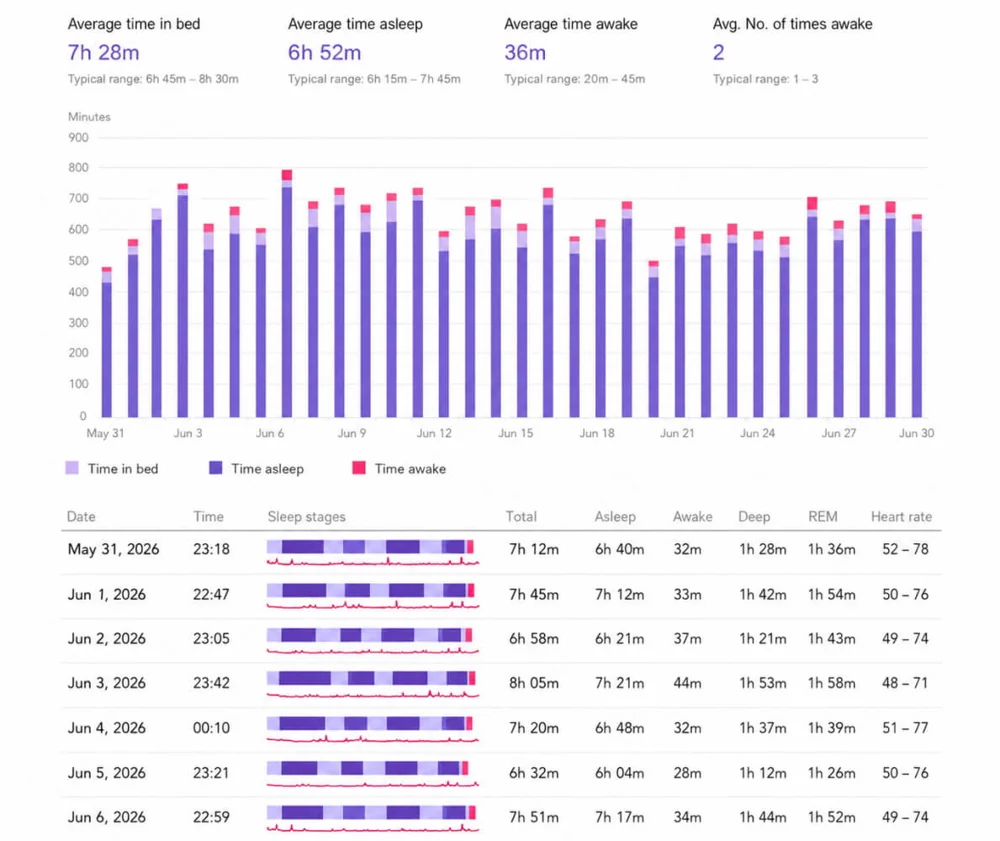
Sleep PDF report generated by Notify with sleep phase chart and heart rate table
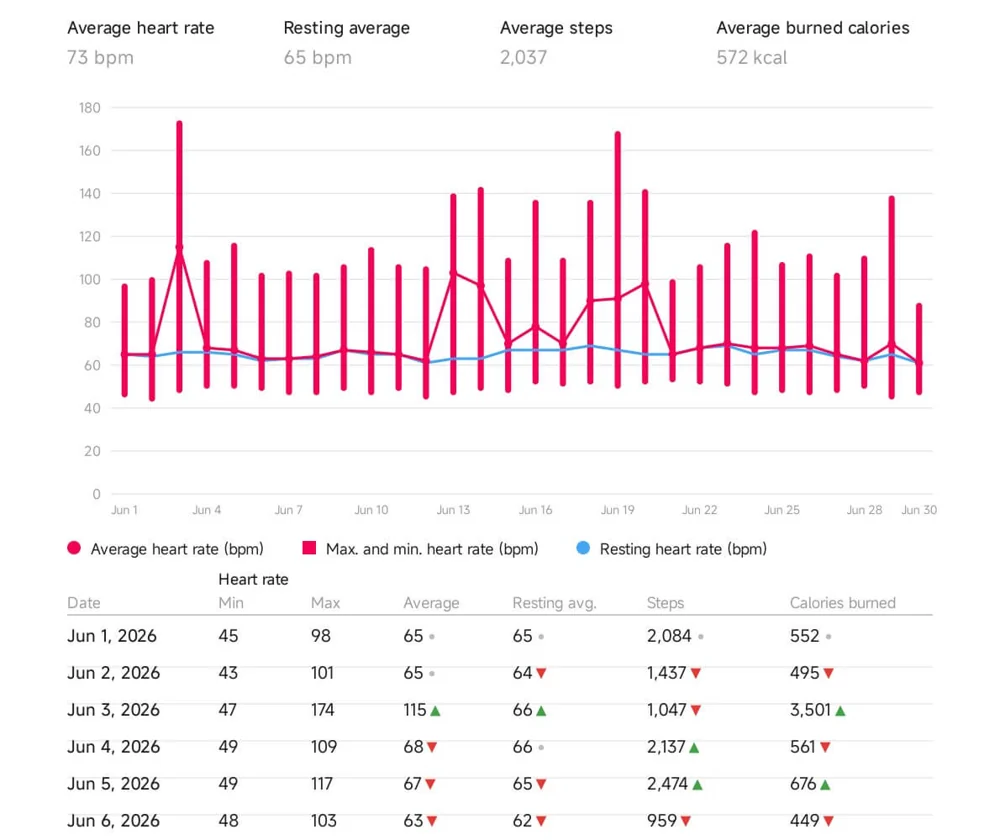
Heart rate PDF report generated by Notify with average, resting, minimum and maximum heart rate trends
Personal context Optional profile fields such as age, gender and blood type can be included when useful.
Date range reports Select a period and export readable daily or session-based summaries.
Easy sharing Reports are generated as PDF files and can be shared with coaches, doctors or kept as records.
Smart insights Supported reports can add insight pages that summarize patterns, progress and notable changes.
Activity report

Activity PDF report: steps, calories and weight trends

The activity PDF report summarizes daily movement over the selected period. It includes steps, burned calories and recorded body weight, with average, minimum, maximum and total values where relevant. Bar charts make it easy to compare active and quiet days, while the insight page can highlight broader activity patterns.

  • Daily steps chart with average, minimum, maximum and total steps.
  • Burned calories chart with average, minimum and maximum calories.
  • Weight trend based on recorded weight measurements.
  • Useful for monthly activity checks, fitness progress and long-term health tracking.
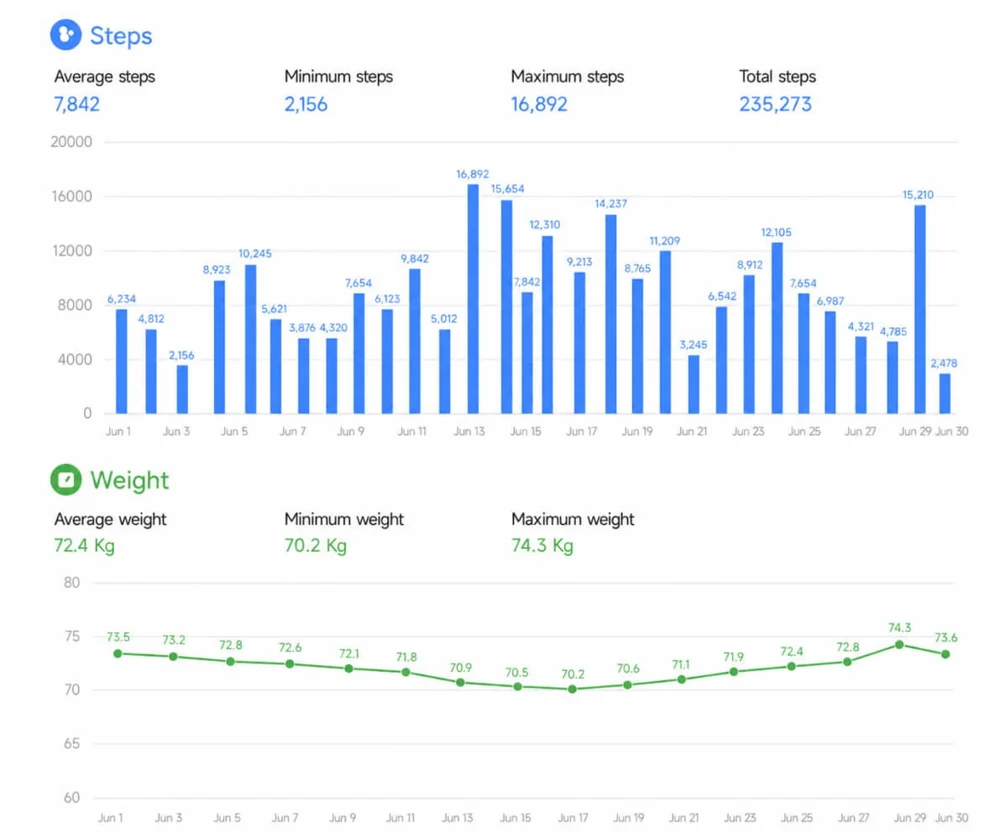
Activity PDF report preview with steps, calories and weight charts generated by Notify
Heart report

Heart rate PDF report: min, max, average and resting heart rate

The heart PDF report is designed for detailed cardiovascular trend review. It combines minimum, maximum, average and resting heart rate data with steps and calories, then adds day-by-day tables with trend indicators that compare each day against the previous one.

  • Combined heart rate chart with min/max range, average heart rate and resting heart rate.
  • Daily comparison table including heart rate, steps and calories.
  • Trend markers show whether key values increased, decreased or stayed stable.
  • Smart insights can summarize relevant changes across the selected period.
Heart rate PDF report preview with min max average and resting heart rate comparison chart
Sleep report

Sleep PDF report: sleep phases, time awake and night heart rate

The sleep PDF report gives a deeper view of sleep quality. It compares time in bed, time asleep and awake time, then lists each night with sleep start time, total duration, deep sleep, awake time and heart rate range. Mini charts show sleep phases and heart rate during the night.

  • Period summary for average time in bed, asleep, awake and awakenings.
  • Stacked chart comparing time in bed, asleep time and awake time.
  • Nightly sleep phase visualization for deep, light, REM and awake intervals.
  • Heart rate line inside each sleep row for easier sleep quality analysis.
Sleep PDF report preview with sleep stages heart rate and nightly comparison table
Blood oxygen report

SpO2 PDF report: blood oxygen range, average and heart rate correlation

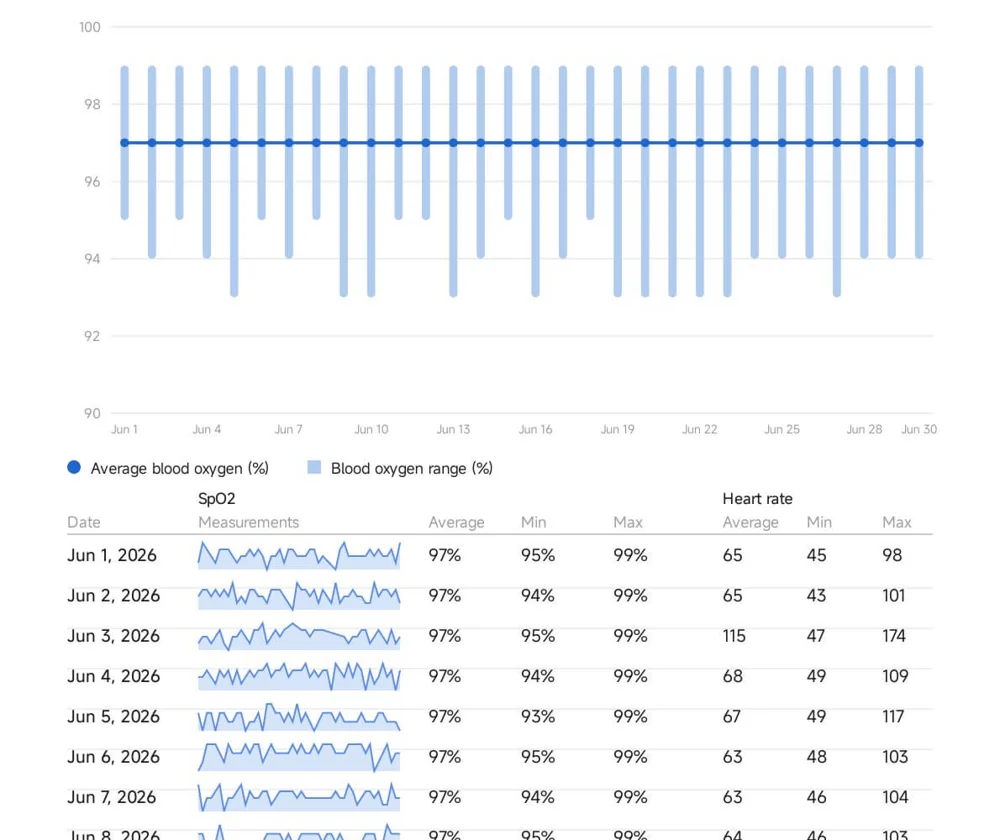
The blood oxygen PDF report focuses on SpO2 stability. It charts daily average oxygen saturation with minimum and maximum ranges, and pairs each day with heart rate statistics to help compare oxygen data with cardiovascular response.

  • Daily SpO2 average line with min/max range bars.
  • Fixed 90-100 percent chart scale for clearer oxygen saturation review.
  • Measurement sparkline for each day using down-sampled SpO2 readings.
  • Heart rate average, minimum and maximum shown next to SpO2 values.
Blood oxygen SpO2 PDF report preview with average range chart and measurement sparkline
Workout reports

Workout PDF reports: single workout detail and period training analysis

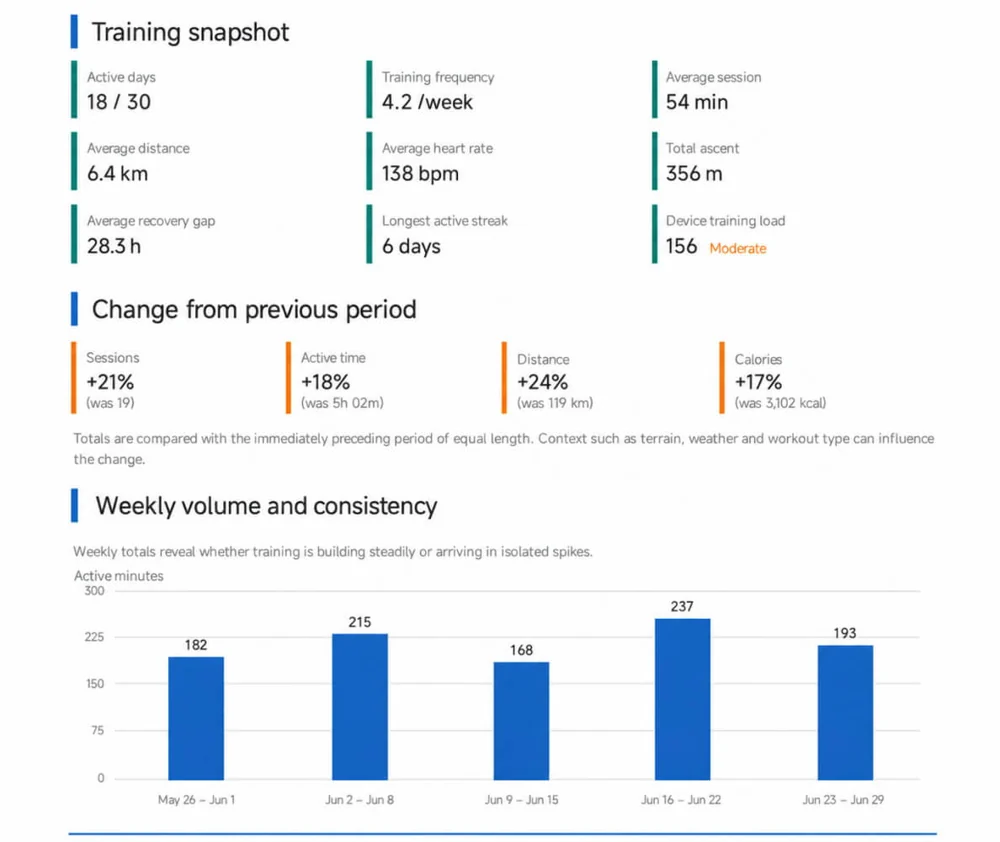
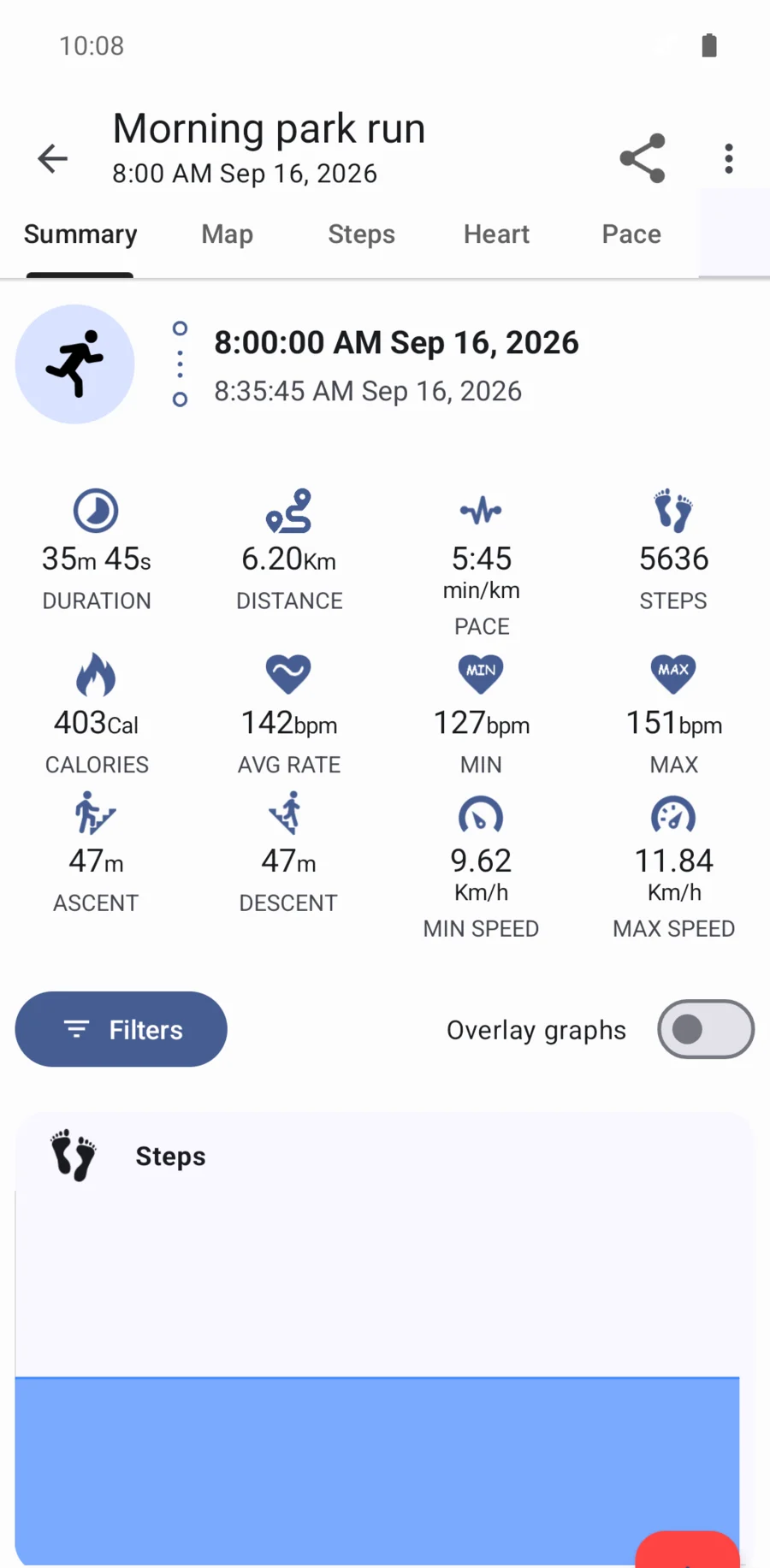
Workout PDF reports cover both individual sessions and broader training periods. A single workout report can include active time, distance, calories, average heart rate, SpO2, pace, cadence, speed, elevation and GPS-based data when available. The period report compares workout volume, frequency, intensity, training load, sport distribution, recovery spacing and session history.

  • Single workout overview with distance, active time, calories, heart rate and optional GPS metrics.
  • Previous workout comparison for active time, distance, calories, speed and heart rate.
  • Period report with sessions, active days, weekly trend, sport distribution and workload.
  • Highlights for longest session, farthest workout, highest energy and highest average heart rate.
Workouts PDF report preview with training summary weekly trend and workout comparison

Advanced PDF Report comparison

Each PDF report is optimized for a different question: daily habits, cardiovascular trends, sleep quality, oxygen saturation or training progression. The table below shows what each report is best suited for and which comparisons it supports.

PDF report type Main data included Charts and tables Comparisons supported
Activity report Steps, calories, body weight Daily bar charts and summary stats Average, minimum, maximum, total steps and period activity patterns
Heart report Min, max, average and resting heart rate, steps, calories Heart trend chart, legend and daily table Day-to-day trend arrows and resting vs average heart rate review
Sleep report Time in bed, asleep, awake, deep/light/REM phases, heart rate Stacked sleep chart, phase timeline and nightly table Night-by-night sleep duration, awake time, deep sleep and heart rate range
Blood oxygen report SpO2 average, minimum, maximum and matching heart rate stats SpO2 range chart, measurement sparkline and daily table Daily oxygen stability and SpO2 vs heart rate context
Workout report Session metrics, GPS, pace, speed, cadence, heart rate, calories Workout overview, charts, split data and optional coach review Previous same-type workout comparison and per-session performance changes
Workouts period report All workouts in a selected period Executive summary, weekly trend, sport distribution, log and highlights Current period vs previous period, workload, frequency and training progression

How to generate an Advanced PDF Report

Open Notify app and go to Device, then choose Advanced PDF Report. Select the report type and date range, generate the PDF and share it directly from Android.

Get Notify app
Important Notes
  • Features may vary slightly between different device models and firmware versions
  • Some advanced features may require specific device capabilities
  • For detailed compatibility information, please check our support page