Smarter notifications for Mi Band, Xiaomi & Amazfit
Your wrist should interrupt you for a reason. Notify lets you decide which apps, people and messages deserve an alert, and how that alert feels on your supported Mi Band, Xiaomi or Amazfit wearable.
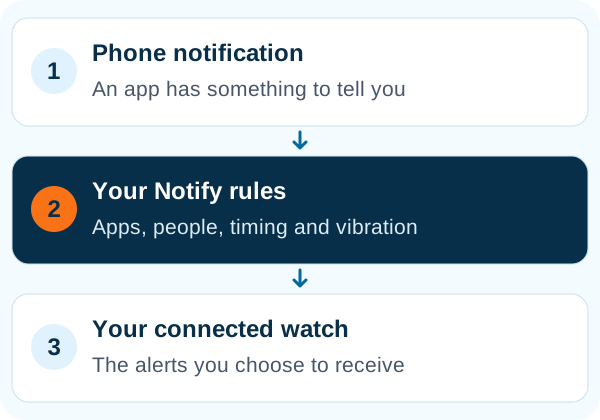
Notify forwards Android phone notifications to your connected wearable and adds configurable filters, schedules, text formatting and vibration rules. Start with one app, test the alert, then tailor it to your day.
Inside the app
See the feature with real Notify screens
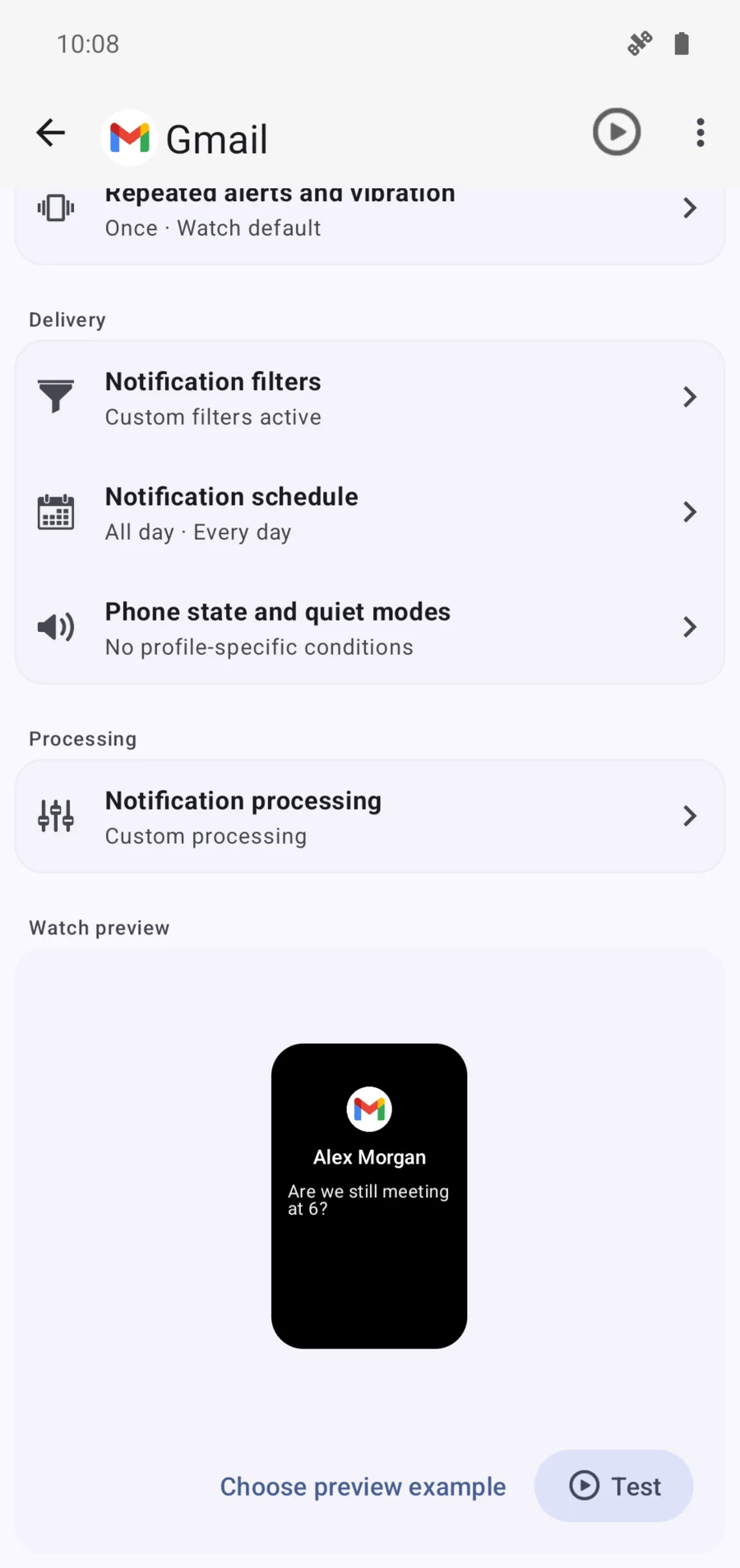
These screens come from the Android app running with illustrative demo records. Tap an image to inspect the details at full size.
Let the useful messages through
A delivery update and a busy group chat do not need the same treatment. Create notification profiles for individual apps, then use names or text to include the messages you want or exclude the noise.
- Filter by content
- Match notification titles and text, including contact or group names as they appear on your phone.
- Use Android channels and importance
- Refine which kinds of alerts qualify when the source app exposes useful notification channels.
- Avoid repeated interruptions
- Suppress duplicate content, delay delivery or enable reminders when an alert needs another nudge.
Make room for focused work and sleep
Choose active days and time windows for a profile. Global quiet periods, weekend settings and conditions based on phone sound mode or screen state help notifications follow your routine. Use exceptions for the people whose messages you still want to see.
Know what arrived before you look
Assign a vibration pattern to an app or call profile and test it on the watch. Short, long and custom options depend on the device; some models use an alternative delivery method. Customise the displayed text and icon where supported, or choose a more discreet alert.
- Make small screens easier to read
- Text replacement, uppercase conversion, transliteration and right-to-left options help adapt notifications to the watch display.
- Tune the reminder
- Set a repeat interval and delivery window instead of making every message equally persistent.
- Build a custom alert
- Custom-notification settings combine a title, message, icon and supported vibration or picture options. Use them for the Notify actions that expose a custom alert configuration.
Give calls their own rules
Set caller-name display, unknown-caller filtering, contact exceptions and supported SIM options. An optional delay gives your phone's existing spam-filtering app time to block a call before the watch alerts. Notify does not identify spam callers itself.
A little fun: send a Notify Friend alert
Not every wrist alert needs to be serious. Notify Friend lets you create a custom alert and share its generated code with another Notify user. Try a playful message or a recognisable vibration as a small surprise. The service uses an internet connection, and the receiving setup must support the selected alert options.
Common questions
Can I get WhatsApp notifications on my Mi Band or Amazfit?
Notify can forward WhatsApp notifications from your Android phone to a supported connected wearable. Enable notification access, add the app in Notify and test its profile. Filters and phone background restrictions can affect delivery.
Can I mute a group without muting every message?
Use an exclusion rule that matches the group name or text shown in the phone notification. Group-specific filtering depends on how the messaging app formats its notifications.
Why do I receive duplicate alerts?
Check whether both Notify and the official companion app are forwarding the same notifications. Also review repeat settings and duplicate-content filters in the Notify profile.