 Notify Maps on Xiaomi Watch and Mi Band
Turn‑by‑turn arrows and haptic vibrations directly on the wrist from Google Maps, Komoot, and OsmAnd—no custom watchfaces or notification hacks needed.
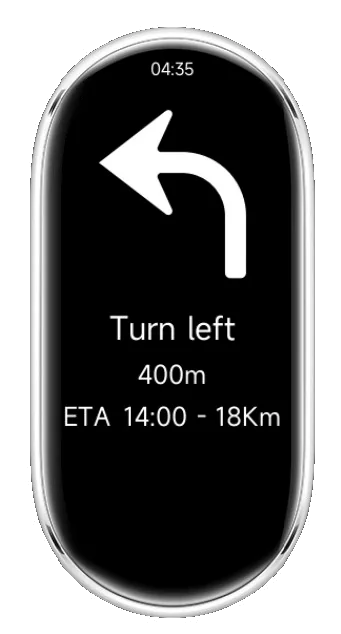
What this does
Notify Maps is a small watch app installed through the Notify guided process that listens for navigation directions from the phone and mirrors clear turn cues with gentle vibrations on the watch.
Why you’ll love it
- Instant arrows and distance on the wrist while riding, walking, or driving.
- Strong, configurable haptics for turn and off‑route alerts.
- Works with popular navigation apps without extra setup.
- No need to enable custom Google Maps notifications in Notify anymore.
Requirements
- Android phone with the latest Notify app installed and running.
- Compatible watch/band: devices that support installing external third‑party apps (RPK packages).
- Navigation app on phone: Google Maps, Komoot, or OsmAnd.
- Bluetooth enabled and connected between phone and watch/band.
New Xiaomi models are released often. Instead of a static list, Notify detects support dynamically. As a rule of thumb, if the watch/band allows installing third‑party RPK apps, it supports Notify Maps. Mi Band 9/10 and the latest Xiaomi watches meet this requirement; new compatible models will appear automatically in the Maps page suggestions.
Privacy friendly: directions are read locally from the phone and relayed to the watch; nothing is sent to a server.
Install on your watch
- Ensure you have at least the Notify for Xiaomi app v22.0.0 or newer installed on the phone.
- Open the Notify for Xiaomi app on the phone.
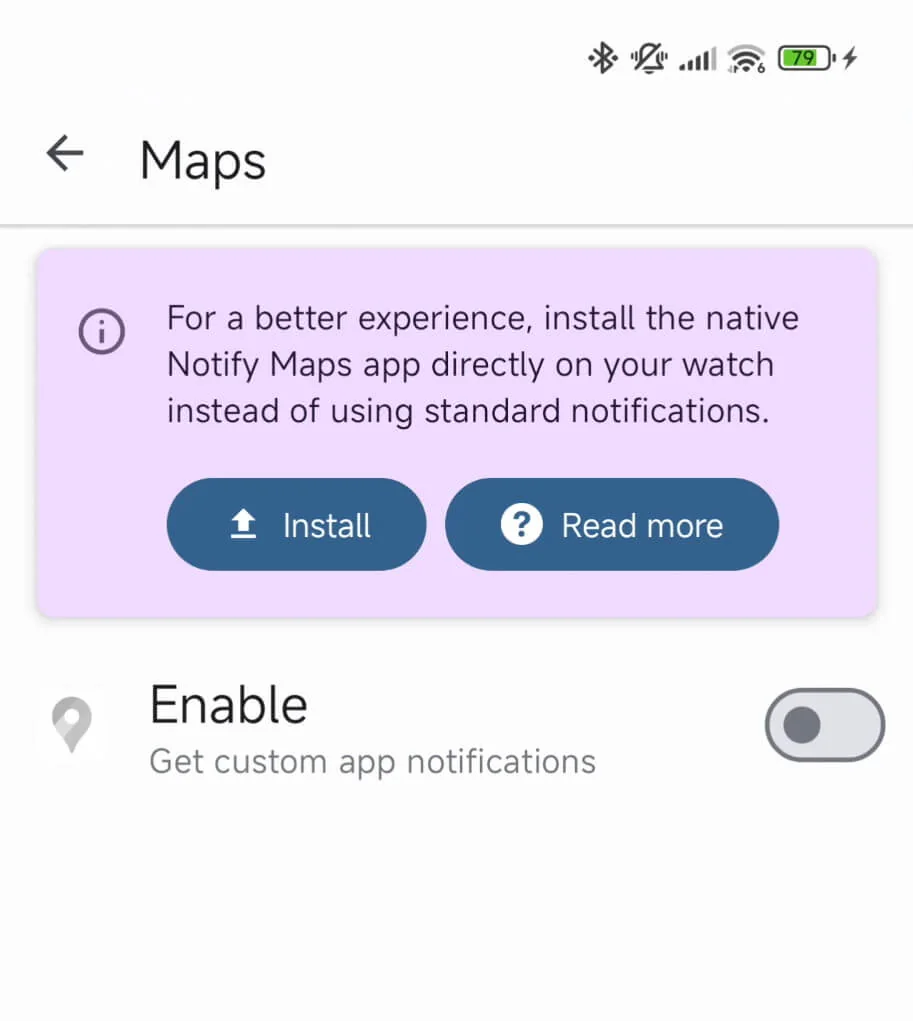
- Go to Notifications → Maps (or OsmAnd or Komoot ).
- If your smartwatch is compatible, a popup will appear on top, tap Install to install the Notify Maps app on your smartwatch.
- Follow the guided steps; keep the watch near the phone until installation completes.
- On the watch, confirm the new app appears in the apps list as “Notify Maps.”
One‑time setup. After this, using it is just two taps: start navigation on phone, open Notify Maps on watch.
Use it in 10 seconds
- On the phone, start navigation in Google Maps, Komoot, or OsmAnd.
- On the watch, open the Notify Maps app—directions and vibrations start immediately.
- Glance at the watch for upcoming turns, distance, and alerts; close the app to stop.
No other steps are required. You do not need to enable “custom Google Maps notifications” in Notify anymore.
Key features
- Turn cues: next maneuver arrow, street name (if available), and distance countdown.
- Haptics: distinct vibration patterns for turn, sharp turn, and off‑route events.
- Auto‑app detection: works with Google Maps, Komoot, and OsmAnd—no per‑app toggles.
- Battery‑aware: pauses when navigation ends; minimal background activity on the watch.
Pro tips
- Keep the phone screen off while navigating to save battery; the watch will still vibrate for turns.
- If using Do Not Disturb on the phone, allow Notify to run in the background or add it to power‑saving exceptions.
- On the watch, make sure app permissions and vibration are enabled.
- For cycling, tighten the strap slightly so haptics are easy to feel.
Troubleshooting
No directions on the watch
- Confirm your device is supported (latest Xiaomi watches or Mi Band 9/10).
- Verify Bluetooth connection and that Notify is running on the phone.
- Start navigation first on the phone, then open Notify Maps on the watch.
- Close any old “custom maps notifications” settings—this feature no longer needs them.
- Restart the watch and toggle Bluetooth if the first connection fails.
Weak or missing vibrations
- Increase vibration strength in the watch or Notify settings if available.
- Ensure the wrist detection or DND on watch isn’t suppressing haptics.
FAQ
Do I need to install a custom watchface?
No. The Notify Maps app runs independently, so you can keep your favorite stock or custom watchface.
Will it work with other nav apps?
Today it supports Google Maps, Komoot, and OsmAnd. Additional apps may be added; keep Notify updated.
Does this send my location to a server?
No. Directions are read locally from phone navigation and relayed to the watch via Bluetooth.
Get started
Install Notify Maps on your watch once, then simply start navigation on the phone and open the app on your wrist to receive turn‑by‑turn directions with haptics.
Ready to Enhance Your Mi Band?
Download Mi Band Notify today and experience the difference.