Why a Google Play license may not be found
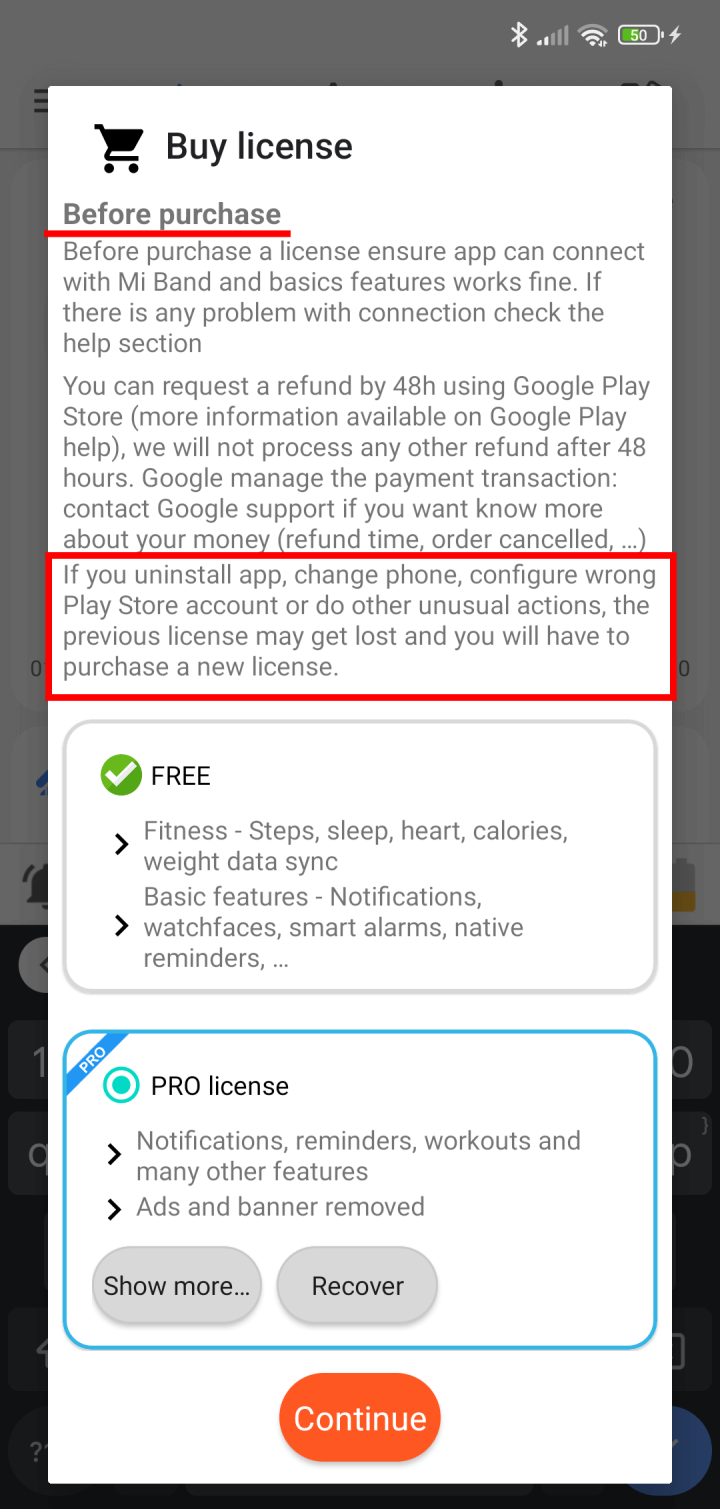
Google Play links an in-app purchase to the Google Account that originally downloaded the app. That may not be the account currently selected in the Play Store. For example, if the app was installed with Account A but the PRO license was purchased with Account B, Google Play Billing may not return the purchase to Notify. In other cases, the local Play Store cache has not yet refreshed the license status.
Restore your PRO license
Reinstall Notify using the purchasing account
Before uninstalling, export a backup from Notify's main left menu if you need to keep app data such as steps, heart data, activities, or preferences. Then uninstall Notify, open the Google Play Store, tap the profile icon in the top-right corner, and switch to the exact Google Account used to purchase PRO. Search for Notify and install it again directly from Google Play while that account is selected.
Refresh Google Play Store and Google Play Services
If the license is not active after reinstalling, open your phone's Settings and go to Apps (also called Manage Apps or Applications). Select Google Play Store, open Storage, then tap Clear Cache and Clear Data. Return to the app list, select Google Play Services, open Storage, and tap Clear Cache. Clearing Play Store data does not delete your personal data or past purchases; it refreshes the local store and license database.
Restore the purchase in Notify
Open Notify, go to the License, PRO, or Upgrade screen, and tap Restore or Restore Purchases. If the license does not appear immediately, close and reopen the app, restart the device, and try Restore again.
Still having problems?
If several Google Accounts are signed in on your phone, Android can sometimes use the wrong one for purchase verification. Temporarily remove secondary Google Accounts from your phone settings, repeat the Play Store cache refresh, open Notify, and tap Restore. You can add the other accounts again afterward. If you completed the purchase only a few minutes ago, Google Play may still be processing the transaction; wait a short while and try again.
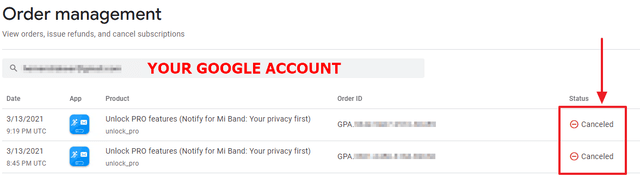
You can also check the order in the Google Payments website or in the Play Store. The order must not be marked Canceled or Refunded; a canceled order means the payment did not complete, so Google Play Support is the right place for payment assistance.
Huawei devices without Google Play Store: a PRO license bought through Google Play cannot be restored on a phone that uses only Huawei AppGallery. In that case, you need to purchase the license through Huawei AppGallery.
Google Play manages payments, refunds, order status, and the list of purchases. Notify asks Google Play for the purchases associated with the selected account, but cannot access or refresh an order when Google Play does not return it. If these steps do not resolve the issue, contact us from the app's Contact support section and include the Google Account used for the purchase (without sharing its password).